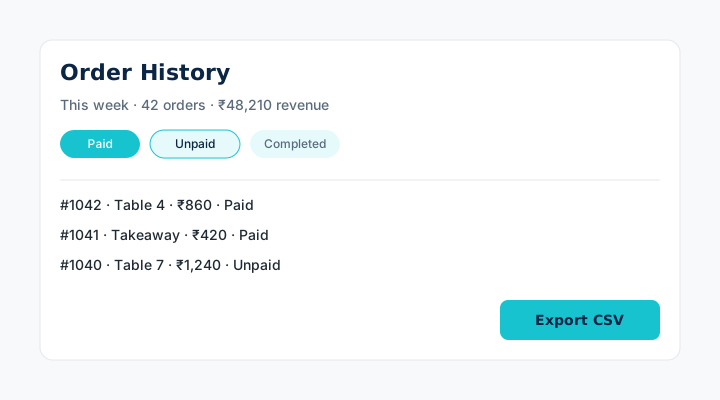
Once the lunch rush ends, the question changes from “what did we just sell?” to “what actually happened?” NHY’s Order History screen is the place owners and authorised staff go to answer that. It is available on Free, Basic, Professional, Enterprise and Enterprise Plus. You can filter the list, open any order, mark payments, send receipts, export a CSV for the period you choose, and see a summary of revenue, tax and unpaid amounts. Monthly order quotas still apply when new orders are placed; viewing and reporting on existing orders is not separately limited.
The practical problem
Paper tickets and chat threads disappear. After a busy day you need to confirm which orders were paid, which are still open, which table number had the large group, and what the total revenue was for the week. Exporting that list for your accountant or for a simple spreadsheet should not require a separate tool. Order History keeps the same orders that flowed through QR, Ring-Up or the kitchen in one searchable place.
Realistic example
A 24-seat café on the Basic plan closes on Sunday evening. The owner opens Order History, selects “This week”, filters to Paid, and sees the revenue summary. Two orders are still marked Unpaid. She opens each, taps Mark paid with the cash reference, and the summary updates. She then taps Export CSV. The file includes order numbers, items, totals, tax and payment method. She shares the file with her accountant. The café is well under its 1,000 monthly order allowance.
Step-by-step workflow
- Open Order History from the owner or staff menu. The screen loads recent orders (available on every plan).
- Choose a period. Select Today, This week, This month, or set custom start and end dates. The list and the summary update to match.
- Filter the list. Tap status chips (Pending, Preparing, Ready, Completed, Cancelled) or payment chips (Paid / Unpaid). Search by table number if needed. The summary recalculates for the filtered set.
- Open an order. Expand a row to see items, options, notes, tax and payment status. From here you can mark paid (if your role allows), send a receipt, or open the printable receipt.
- Send a receipt. If the order has a customer phone, choose Send receipt. NHY opens WhatsApp with the receipt link ready, or shares the link another way.
- Export a report. Tap Export CSV. The file covers the current period and filters and includes order details, totals and payment method. Nothing is sent to a third party automatically.
- Optional actions. On supported store types you can merge bills or split a bill. A Tax preparation panel appears for owners on Basic plans and higher when India tax features are enabled.
Role note: Marking payments and correcting amounts is limited to roles that canCorrectPayments (typically owners, admins, managers). Other staff can still view and export.
Which plans include it
| Plan | Order History & reports |
|---|---|
| Free | Included; viewing, filtering, export; 100 orders/month when placing |
| Basic | Included; viewing, filtering, export; 1,000 orders/month when placing |
| Professional | Included; viewing, filtering, export; unlimited orders |
| Enterprise | Included; viewing, filtering, export; unlimited orders |
| Enterprise Plus | Included; viewing, filtering, export; unlimited orders |
The same row appears on the public pricing page and in the NHY plan comparison. Exporting the CSV does not consume extra credits or a separate quota.
Evidence-based benefits
- One screen replaces searching through kitchen tickets or chat logs.
- Period summaries (today / week / month / custom) update instantly when you change filters.
- CSV export gives your accountant or spreadsheet the exact lines you see, with cancelled orders excluded from revenue totals.
- WhatsApp receipt sharing re-uses the customer phone already on the order.
Prerequisites and limits
- An active store with at least one completed or open order.
- Staff role that can open the owner menu (viewing is broad; payment corrections are role-gated).
- Monthly order quotas from your plan apply only when new orders are placed, not when reviewing history.
- Tax preparation panel requires Basic or higher and an India tax profile (see the separate tax guide).
Questions owners ask
Does exporting the CSV cost credits or count against my order quota?
No. The export reads the orders already stored for your store. Order quotas apply only when you place new orders through Ring-Up, QR or other channels.
Can I see orders from last month?
Yes. Choose This month or set a custom date range. The list and summary both respect the range you select.
What if a customer has no phone number?
You can still view the order and open the printable receipt. WhatsApp sharing requires a phone on the order.
Does this work on Free?
Yes. Free stores can review history, filter and export. New orders are limited to 100 per calendar month.
Related guides: Place counter orders with Ring-Up · Read today’s sales on the dashboard · Prepare India tax drafts