· ← Nautical Blog · Tables

Set up tables, floor areas and live status in the NHY Tables screen

Add tables with seat counts, organise them into areas such as Main Hall or Patio, toggle Available / Occupied / Reserved, and generate QR codes — available on every NHY plan within your table limit.

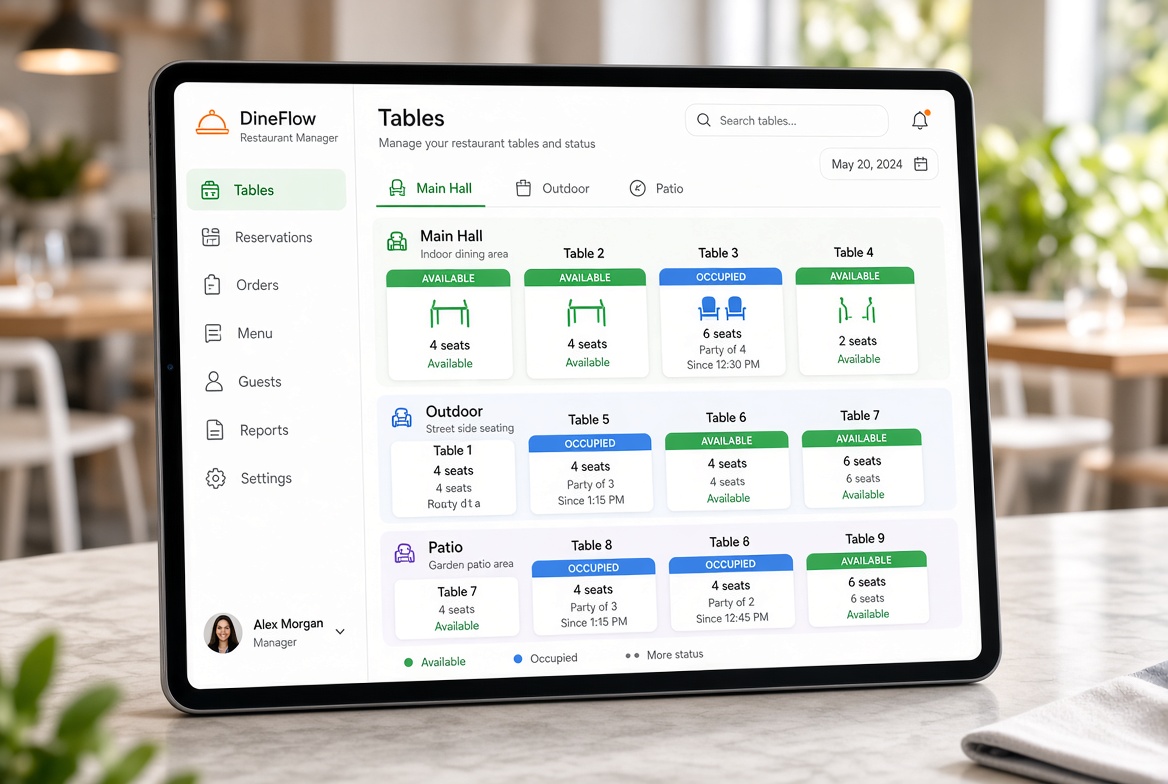
Tablet showing restaurant tables management screen with Available and Occupied tables grouped by Main Hall, Outdoor and Patio areas
Organise tables by floor area and see live status at a glance in the NHY Tables screen.

Restaurant and cafe owners need a clear view of which tables are free, which are occupied and which areas are busiest. NHY’s Tables screen lets you create tables, assign them to floor areas, update their status in real time and generate QR codes for ordering — all from one place in the app.

The screen is available on Free, Basic, Professional, Enterprise and Enterprise Plus. The number of tables you can create follows your plan’s monthly table limit. Viewing and updating status does not consume a separate quota.

The operating problem

During a busy lunch service a host needs to know instantly which tables are free and which section has capacity. Walking the floor or relying on memory leads to double-seating or long waits. With NHY you set up your tables once, group them by area, and staff can tap a table icon to cycle its status from Available to Occupied or Reserved. Everyone on the team sees the same live picture.

How owners and staff use the Tables screen

  1. Open the NHY app and go to Tables & Bookings (or the Tables tab). The screen loads your current tables and shows quick stats: Total, Free, Busy and Reserved.
  2. To add a table, tap the add button. Enter a table number, seat count and choose an area. Default areas include Main Hall, Indoor, Outdoor, Patio, Rooftop, Garden, Balcony, Private Room, Bar and Takeaway. You can also use areas already created for your store.
  3. Once created, each table card shows the number, area, seats and current status. Tap the table icon to cycle the status: Available → Occupied → Reserved → Available. The change is saved immediately so the whole team stays in sync.
  4. Tap Generate QR Code on a table to create a scan-to-order code. You can preview it, download or share the link. Guests who scan land on the live menu for that table.
  5. Edit a table to change its number, seats or area, or delete it if you no longer need it. The app checks your plan’s table limit before allowing a new table.
  6. Switch to the Bookings tab if your plan includes reservations (Enterprise and higher) to view or create bookings. Table setup and status work independently of the bookings feature.

Table limits are enforced when you add a new table. Updating status or generating a QR does not count against the limit.

Practical example

A cafe owner with outdoor seating opens Tables. She adds Table 1–4 under “Main Hall” (4 seats each) and Table 5–7 under “Patio” (2 seats). During morning rush she taps the icon on Table 2 to mark it Occupied when a couple sits down. Later she generates a QR for Table 6 so the patio guests can order without waiting for a server. The stats bar at the top always shows how many tables are free across both areas.

Which plans include it

Table setup, floor-area organisation, live status and QR generation are available on every plan. The maximum number of tables is the only plan-dependent limit.

PlanTables screen & statusMaximum tables
FreeIncluded5
BasicIncluded20
ProfessionalIncluded50
EnterpriseIncludedUnlimited
Enterprise PlusIncludedUnlimited

These limits come from the same TIER_LIMITS used elsewhere in the app (maxTables). There is no separate monthly quota for viewing or updating table status. Reservations remain an Enterprise and Enterprise Plus feature; the tables list itself is not gated by that.

QR codes generated here follow the same ordering rules as other table QRs and are subject to your plan’s order limits when guests place orders.

Limitations and tips

FAQs

Do I need a paid plan to manage tables?

No. Free plan owners can create up to 5 tables, assign areas and update status. Higher plans simply raise the limit.

Can I change a table’s area later?

Yes. Edit the table and pick a different area. The change is saved immediately.

Does marking a table Occupied block QR orders?

No. Status is for your team’s awareness. Guests who already have the QR can still order; you control availability through the menu and sold-out toggles.

Where do the default areas come from?

NHY offers common areas (Main Hall, Outdoor, Patio, etc.). You can also use any custom area names already present in your store data.

Try it in NHY

Open the NHY app, go to Tables, and set up your first floor area so the whole team can see which tables are free.

Open NHY web app
TablesCreate and share table ordering QR codes and Google review QRs in NHYTablesManage table reservations and bookings in NHYTablesName your tables and share QR links from WhatsApp with NHY

Try NHY free

Start on the Free plan and upgrade when your store needs more.

See plans and pricingOpen the web appGet it on Google PlayDownload on the App Store