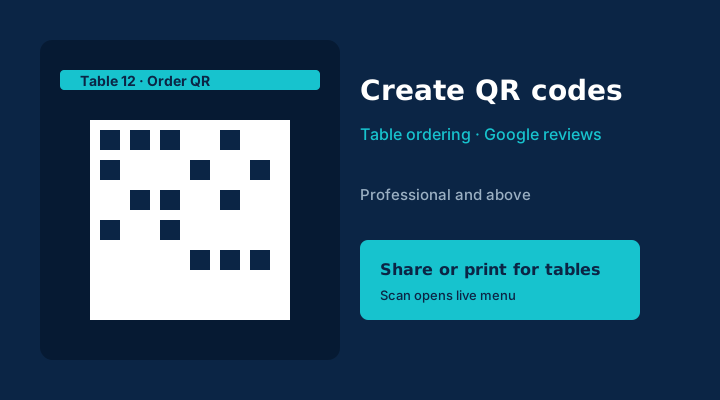
Printed paper menus and “please leave a Google review” notes still work, but they go out of date and get lost. On Professional, Enterprise and Enterprise Plus plans, NHY’s Create QR screen lets you generate a scan-to-order QR for any table you have already set up, plus a separate Google review QR that hands the guest to your Business Profile. The ordering QR opens the same live menu guests would see from a table QR code. No app download is required on their side.
The practical problem
You already have tables in NHY and a menu that changes with the service. Printing a new QR for every table whenever prices or items move is slow, and a generic “leave us a review” sign does not connect to the right Google place. The Create QR screen re-uses the tables you already manage and the Google Place ID you enter once, so the codes stay accurate and can be shared or printed as needed.
Realistic example
A 12-table café on the Professional plan finishes lunch service. The owner opens Create QR, chooses “Scan and order QR”, and generates a code for Table 4. She shares the link via WhatsApp to the staff group so they can display it on the table stand. Later she switches to “Google review QR”, pastes the Place ID for the café’s Google Business Profile, saves it, and generates the review code. She prints a small version for the counter. Guests who scan the table code land on the current menu; those who scan the review code prepare their own review and publish it on Google.
Step-by-step workflow
- Open Create QR from the owner menu (Professional and above). Free and Basic users see an upgrade prompt. The screen shows your store name and the two options.
- Generate a table ordering QR. Choose “Scan and order QR”. The list of your existing tables appears. Tap a table to generate its ordering link and display the QR. Share the link or screenshot the code to print.
- Generate a Google review QR. Choose “Google review QR”. Enter the exact Google Place ID for this store’s Business Profile (check it carefully). Tap Save and generate. The review URL and QR appear.
- Share or display. Use the Share button to send the link, or take a screenshot of the QR to print for table stands or the counter. Guests scan with their phone camera; no NHY app is required on their device.
Entitlement note: The screen re-checks that the store has an active Professional or higher subscription before generating either code. Place ID must match the correct Google Business Profile for the store.
Which plans include it
| Plan | Create QR codes |
|---|---|
| Free | Not included |
| Basic | Not included |
| Professional | Included — table ordering QR and Google review QR |
| Enterprise | Included — table ordering QR and Google review QR |
| Enterprise Plus | Included — table ordering QR and Google review QR |
Table counts still follow your plan’s table limit. Generating the QR does not consume extra credits or a separate monthly quota beyond existing table and order limits.
Evidence-based benefits
- Ordering QR always points to the current menu and the specific table, so staff do not reprint when items change.
- Review QR uses the Place ID you control, reducing the chance of reviews going to the wrong location.
- Shareable link works for both printed stands and temporary digital displays.
- Same entitlement check as other Professional features keeps access consistent.
Prerequisites and limits
- Active Professional, Enterprise or Enterprise Plus subscription and owner access.
- At least one table already created in Tables for ordering QRs.
- Correct Google Place ID for the review QR (the screen does not invent or look it up).
- Monthly order quotas and table limits from your plan still apply when guests place orders through the QR.
Questions owners ask
Do guests need to download an app?
No. They open their phone camera, scan the QR, and the menu or review flow opens in the browser.
Can I regenerate a QR if the table number changes?
Yes. Generate again for the updated table. Old printed codes will point to the previous table link, so replace the physical display.
What if I enter the wrong Place ID?
The review QR will hand guests to that Google place. Verify the Place ID in your Google Business Profile before saving.
Does this work on Free or Basic?
No. Create QR requires Professional or higher. Lower plans can still use existing table QR flows where available, but the dedicated Create QR screen is gated.
Related guides: Name tables and share QR links · Ask for a Google review after the bill is paid · Place counter orders with Ring-Up