← Nautical Blog

NHY · Tables & Ordering

Name your tables and share QR links from WhatsApp with NHY

Add tables by name such as A1 or Terrace from WhatsApp, get their QR codes instantly, and let guests order from a store-wide link without a table number.

Published

Restaurant and café owners often manage the floor from their phone. Adding a new table or sending a QR code for a specific table used to mean opening the full NHY app, navigating to settings, and generating the link. Now the WhatsApp Assistant handles the common cases with a short command and a confirmation.

Tables can have any short name made of letters, numbers, dashes or underscores — “4”, “A1”, “online”, or “Terrace”. The same plan limits that already control how many tables you can create still apply. Guests can also order from a store-wide link that does not require a table at all; those orders are tagged as online.

The operating problem

A café owner is at the market when a new outdoor table is ready. Staff need a QR code printed for it before lunch. Opening the app, finding the tables screen, and creating the entry takes time and attention. Or a delivery-only store wants customers to browse and order from a shared link without inventing a table number.

The assistant already answers questions about sales and stock. Adding table setup and link sharing keeps the same chat for the next practical task.

A realistic afternoon

Ravi runs a small café with a terrace. He messages the linked WhatsApp number “/addtable Terrace seats 6 area Terrace”. The assistant asks him to confirm. After he taps Yes, the table is created. He then sends “/qr Terrace” and receives the QR image and the customer link to print or share. Later he sends “/qr” with no table name and gets the store-wide link that lets guests order without selecting a table.
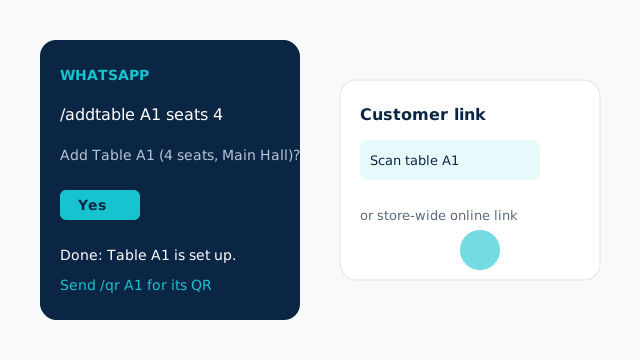
Diagram showing a WhatsApp chat adding table A1 with confirmation and a customer QR link illustration
Illustration of adding a named table from WhatsApp and the resulting customer link. Your store’s labels and links appear after you confirm.

How to set up named tables and get links

  1. Make sure your WhatsApp is linked to the NHY Assistant from Settings (owners only for table creation).
  2. Send /addtable followed by the table name, for example /addtable A1 seats 4 area Main Hall. Seats and area are optional; defaults are 4 seats and Main Hall.
  3. The assistant shows a short summary and asks for confirmation. Tap Yes (or reply yes) to create it. Nothing is added until you confirm.
  4. To get the QR code and customer link for a table, send /qr A1 (or /tableqr A1). If the table does not exist yet, the reply includes a link to set it up.
  5. For a store-wide ordering link that does not require a table, send /qr with no table name. Guests who open that link start a session and can place orders tagged as online.

Labels must be unique within your store (case does not matter), 1–20 characters, and may contain only letters, digits, dashes and underscores. Existing tables keep their original numbers and also receive a matching label so old links continue to work.

What the guest sees

A table-specific link opens the menu already associated with that table. A store-wide link opens a guest session without a table. Orders from the store-wide link are recorded as online so kitchen and reports can distinguish them. Both use the same live menu, portions, coupons and payment options already configured in NHY.

Which plans include it

Table creation and QR links are available on every plan. The number of tables you can create is controlled by the same MaxTables limit that already appears on the pricing page. Creating a table through WhatsApp stops at that limit and tells you to upgrade if you have reached it. There is no extra charge or separate quota for the WhatsApp commands or for tableless online ordering.

PlanTablesNamed tables & online guest links
Free5Included; limited by table count
Basic20Included; limited by table count
Professional50Included; limited by table count
EnterpriseUnlimitedIncluded
Enterprise PlusUnlimitedIncluded

QR order volume (how many orders guests can place via QR) remains the separate allowance shown for QR table ordering. The online guest session uses that same ordering path.

Limits and things to know

These commands sit on top of the same table and order data the app already uses. They do not change pricing, inventory or tax rules.

Questions owners ask

Can I name a table “online” or use letters?

Yes. Any combination of letters, digits, dash and underscore up to 20 characters is allowed, as long as it is unique in your store.

What happens if I reach my table limit?

The assistant refuses the creation and shows the current limit and how many tables you already have, with a note to upgrade the plan.

Do guests need an app?

No. They open the link or scan the QR in their phone browser, the same way table QR ordering already works.

Open NHY and link WhatsApp for table links