Phone calls and walk-ins still arrive even when guests can order from a table QR code. Without a shared list, staff lose track of who is expected, which table is held, and whether a booking was confirmed. NHY gives Enterprise owners a Reservations screen and a Bookings tab inside Tables so the day’s plan stays visible to everyone on the floor.
The practical problem
A notebook behind the counter works until two people take the same call or a shift changes. Guests arrive and no one knows whether their name is written down. Tables stay empty or get double-booked. A short list that shows time, party size, name and status removes the guesswork.
Realistic example
A café owner receives three phone bookings for Saturday lunch. She opens the Reservations screen, confirms the first two, and cancels the third because the party is larger than available seats. When the first group arrives she marks them Seated and assigns the table. Later she adds a walk-in booking from the Tables & Bookings screen so the evening team sees it too.
Step-by-step workflow
- Open Reservations from the owner menu (Enterprise and Enterprise Plus plans). Free, Basic and Professional users see an upgrade prompt. The screen loads today’s list sorted by time.
- Review the summary. Totals for all bookings, Pending and Confirmed appear at the top. Each card shows time, party size, customer name, phone, assigned table (if any) and special requests.
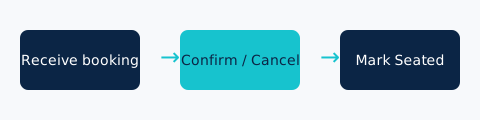
- Act on pending bookings. Tap Confirm or Cancel. Confirmed bookings can be marked Seated when the party arrives. Status colours make the list easy to scan.
- Add a new booking from the Tables & Bookings screen (Bookings tab). Enter name, optional phone, party size and notes. The booking is saved as Pending and appears on both screens.
- Refresh anytime. Pull down or reopen the screen to pick up changes made by other staff.
Free: Not included.
Basic: Not included.
Professional: Not included.
Enterprise: Included.
Enterprise Plus: Included.
No separate monthly reservation quota is enforced in the entitlement matrix. Table count limits from your plan still apply when you create tables. Guest QR ordering remains available on lower plans.
Evidence-based benefits
- One shared list instead of separate notebooks or chat messages.
- Status changes (Pending → Confirmed → Seated) are visible immediately to anyone who opens the screen.
- Bookings created on the Tables screen appear on the dedicated Reservations view and vice versa.
- Works alongside existing table QR codes and order pipeline — no extra app.
Prerequisites and limitations
- Enterprise plan or higher for the dedicated Reservations screen.
- Tables must already exist (subject to your plan’s table limit) if you want to assign a table number.
- The current screens support owner-entered bookings and status updates. Online guest self-booking links are not generated from these screens.
- No automatic SMS or email confirmations are sent by the reservation screens; staff still call or message guests if needed.
FAQs
Can guests book themselves? These screens are for owners and staff. Guests continue to order via table QR codes. Self-service reservation links are not part of this view.
Does it work on Free or Basic? No. The Reservations screen is gated to Enterprise and Enterprise Plus. Lower plans can still manage tables and QR codes.
Can I delete a booking? Yes, from the Bookings tab on the Tables & Bookings screen.
Ready to keep today’s bookings clear?
Open the NHY app