· Blog · Billing

View usage, manage auto-renew and upgrade your NHY plan

Check how many orders, products, staff and tables you have used this month, toggle auto-renew, review recent payments, top up AI credits and move to a higher plan when the numbers show you need more room.

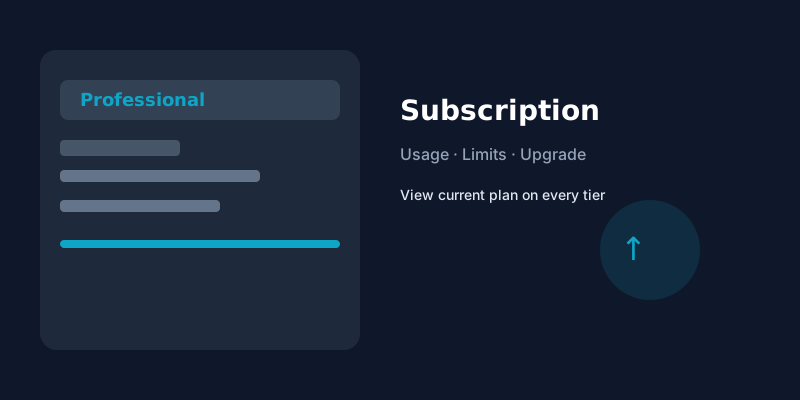
Illustration of the NHY subscription screen showing current plan, usage bars and upgrade option
The Subscription screen shows your current tier, live usage against limits and quick actions for billing.

Owners often discover they are close to a monthly limit only when a new order is blocked or a staff invite fails. The NHY Subscription screen puts the current plan, remaining allowances and recent billing activity in one place so you can act before the rush. It is available on Free, Basic, Professional, Enterprise and Enterprise Plus. Viewing usage does not consume any quota. Changing the plan itself is completed on the web at app.nautical.co.in so native apps stay clear of in-app purchase rules.

AI generation credits are tracked separately from the subscription. The same screen shows the current credit balance and lets you start a top-up. Credits reset or refill according to the packs you buy; they are not part of the monthly order or product limits.

How owners use it

  1. Open Settings then Subscription (or the Subscription card on the main Settings screen). The screen loads your active plan name, billing cycle, next renewal date and current status.
  2. Review the usage cards. Each card shows current count versus the plan limit for orders this month, products, staff members, tables and (where relevant) kitchen stations or locations. Unlimited items appear as ∞. A progress bar highlights when you are approaching the limit.
  3. Check AI credits. The balance appears near the plan details. If credits are low, the top-up action opens the credit purchase flow (on web) or directs you to the web console (on native apps).
  4. Toggle auto-renew if you want the subscription to continue or stop at the end of the current period. The change is saved immediately.
  5. View the last few payment records for reference. Amounts and dates match what was charged.
  6. To upgrade, choose a higher plan and billing cycle. On the web app the Razorpay checkout opens inside the browser. On iOS or Android the screen explains that plan changes must be completed by signing in at app.nautical.co.in in a web browser. After successful payment the new tier appears on the next load.
  7. To cancel, confirm the action. Access to paid features continues until the end of the already-paid period. Direct downgrades are not offered; cancel and resubscribe to a lower plan after the current period ends if needed.

Which plans include it

The Subscription management screen itself is available on every tier so owners can always see their current allowances. The limits shown are the same ones enforced when placing orders, adding products or inviting staff.

PlanSubscription screenTypical monthly limits shown
FreeIncluded100 orders, 50 products, 2 staff, 5 tables
BasicIncluded1,000 orders, 200 products, 5 staff, 20 tables
ProfessionalIncludedUnlimited orders and products, 20 staff, 50 tables, 3 locations, 1 KDS
EnterpriseIncludedUnlimited orders, products, staff and tables; unlimited KDS
Enterprise PlusIncludedUnlimited orders, products, staff and tables; unlimited KDS

AI credit top-ups and plan upgrades are separate from the base subscription. Connectors that require your own provider account (Shopify, stock-photo services, speech-to-text) remain outside the subscription limits. Exact prices and credit packs are shown on the pricing page and inside the app; this guide does not change those amounts.

Practical example

A café on the Basic plan checks Subscription mid-month and sees 780 of 1,000 orders used and 4 of 5 staff seats taken. The owner toggles auto-renew on, notes the next renewal date, and decides to upgrade to Professional before the weekend so the extra staff and unlimited orders are ready. On the phone the screen directs them to open app.nautical.co.in in the browser; they complete the upgrade there. The next morning the usage cards show the new higher limits and the plan name has updated.

Limitations and tips

Questions owners ask

Can Free plan users open the Subscription screen?
Yes. Everyone can view their current plan and usage.

Why does the app tell me to use the web for upgrades?
Apple and Google rules treat subscriptions sold inside the native app differently. Completing the change on the website keeps the mobile apps simple and compliant.

Do usage limits reset every month?
Yes. Order, product and staff counts that are capped reset with the calendar month for the current billing period.

Open NHY and check your subscription
TablesSet up tables, floor areas and live status in the NHY Tables screenKitchenAdvance kitchen tickets in real time with the NHY Kitchen boardOperationsManage multiple store locations with NHY on Professional plans

Try NHY free

Start on the Free plan and upgrade when your store needs more.

See plans and pricingOpen the web appGet it on Google PlayDownload on the App Store