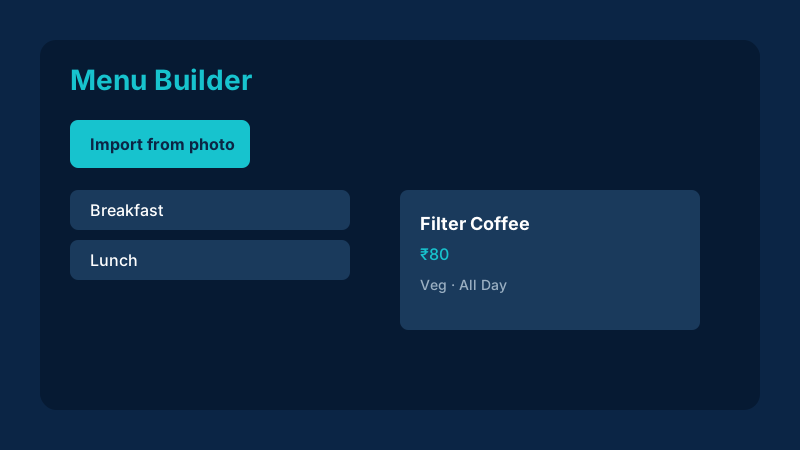
Retyping a paper menu into a digital system wastes an afternoon and introduces mistakes in prices or spellings. NHY’s Menu Builder is available on every plan so owners can create categories with colour, then add items with price, description, veg or spicy flags, featured status and service availability (Breakfast, Lunch, Dinner or All Day). If the card already exists on paper, the Import from photo flow reads up to ten photos, extracts categories and items with AI, and lets you edit names and prices before saving. Product limits still apply: 50 items on Free, 200 on Basic, unlimited on Professional and above.
The practical problem
A café that updates specials weekly still carries the old laminated card. Guests scan the QR and see yesterday’s prices. Staff argue about whether the new sandwich is veg. Importing from a phone photo of the current card, then confirming the numbers, closes the gap without starting from a blank screen. Manual entry remains available for items that need custom notes or images.
Realistic example
The owner of a 40-seat café on the Basic plan photographs the breakfast and lunch cards on the phone. She opens Import from photo, selects the four images, and taps Read Menu with AI. Within a minute the review screen shows “Breakfast” with the bun and filter coffee, and “Lunch” with the sandwich and salad. She corrects one price that the photo blurred, adds the veg flag to the salad, and saves. The new items appear in Menu Builder and on the guest QR menu. She then adds photos to the top two sellers from the stock library and marks the sandwich as featured. Total time: under ten minutes, well inside the 200-item Basic limit.
Step-by-step workflow
- Open Menu Builder from the owner home (available on Free and every paid plan). The screen lists categories and the current item count against your plan limit.
- Add a category if needed. Give it a name and optional colour. Categories can be nested; items can belong to more than one.
- Add or edit an item. Enter name, price, description, and assign at least one category. Toggle veg, spicy or featured (top-item limits apply by plan). Set availability to All Day or a meal period. Upload or pick images (up to ten per item). The customer preview updates as you type.
- Or import from photo. Tap Import from photo. Choose camera or gallery (up to ten photos). Tap Read Menu with AI. Review the extracted categories and items, edit names, descriptions and prices, add or remove lines, then Save to Menu. The items land in Menu Builder ready for images and flags.
- Mark sold out when needed. The sold-out toggle (covered in a separate guide) hides the item from the guest menu without deleting it.
- Save and check the guest view. Changes appear on the QR menu immediately. Pull to refresh if you are testing on another device.

Free: Menu management included; up to 50 products.
Basic: Included; up to 200 products.
Professional: Included; unlimited products.
Enterprise: Included; unlimited products.
Enterprise Plus: Included; unlimited products.
AI photo import is available on every plan and uses generation credits (same model as AI product photos). Product limits still apply after import. Featured (top) item counts have separate plan caps.
Evidence-based benefits
- One source of truth: the same items appear on the guest QR menu, counter ring-up and kitchen tickets.
- Import from photo reduces the time to move an existing card online and lowers transcription errors.
- Meal-period availability keeps breakfast items off the dinner card without deleting them.
- Category colours and featured flags help staff and guests scan the list faster.
Prerequisites and limitations
- Any plan can open Menu Builder; product counts are enforced (Free 50, Basic 200, higher unlimited).
- AI import requires generation credits. If credits are exhausted the parse fails and you can still enter items manually.
- Photos should be reasonably clear; the system accepts older or wrinkled cards but may miss faint text.
- You must assign at least one category before an item saves. Prices are set by you; the system does not invent them.
- Images are optional. Stock photo connectors require your own provider account.
FAQs
Does the Free plan include menu building? Yes. Free includes basic menu management and QR menu access, limited to 50 products.
What happens if the AI misreads a price? The review screen lets you edit every name and price before saving. Nothing is published until you confirm.
Can I import and still use the sold-out toggle? Yes. After import, open any item in Menu Builder and use the sold-out switch. Guests no longer see it until you turn the switch off.
Ready to put your menu online without retyping?
Open the NHY app