· Blog · Marketing

Let customers try products virtually with the NHY Try-On Kiosk

Upload a photo or short video of a product. Customers see it on themselves at the in-store kiosk or, if you enable it, from the customer app — all while staying inside your AI credit balance.

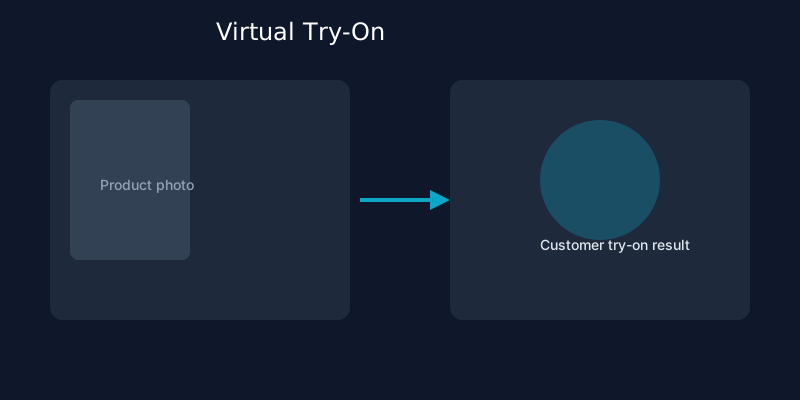
Illustration of a product photo being used for virtual try-on on a kiosk and phone
Owners add items once; customers try them on at the kiosk or in the app. Renders use the store’s AI credits.

Clothing, accessories, eyewear or other try-on friendly products sell better when customers can see how they look before they buy. Setting up a physical mirror or asking staff to hold items takes time. NHY’s Try-On Kiosk lets you upload a clear photo or short video of the product. The system prepares it, and customers can then request a virtual try-on at a staffed kiosk or, when you switch it on, from the customer-facing app or web menu.

The feature is available on every plan, including Free. Each successful render draws from your store’s AI credit balance, the same balance used for product mockups and video ads. There is no separate monthly quota beyond the credit balance and the daily shopper cap you set yourself.
How owners use it

  1. Open Try-On Kiosk Items in the NHY owner app. You see any products already prepared for the kiosk and a settings card for the customer app.
  2. Tap the + button to add an item. Enter a name and optional category. Pick a photo or a short video (up to 30 seconds) of the product. Upload and save. The item moves to “Preparing” while NHY processes it; it becomes “On kiosk” when ready.
  3. Toggle the item active or hidden. Only active, ready items appear for customers. You can remove an item at any time.
  4. Optionally turn on “Try-On in the Customer App”. Set a daily limit (default 50 renders per day) so the feature cannot run away with credits. Shoppers then see a “Try it on” option on matching menu items or can open a store try-on link.
  5. Shoppers give clear consent, take or upload their own photo, and receive the blended result. They can save, share or delete their photo immediately. The store is charged only for completed renders.
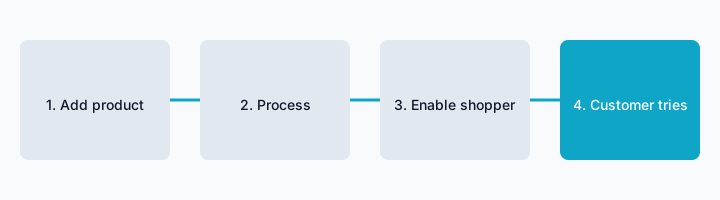
Four-step workflow: add product, process, enable shopper, customer tries on
From product upload to customer result. Failed or incomplete renders do not consume credits.

Which plans include it

Virtual try-on is available on all five tiers. There is no plan gate that hides the Try-On Kiosk screen. Each completed render requires AI credits.

PlanVirtual try-on (kiosk + shopper)
FreeIncluded; AI credits required; owner sets daily shopper cap
BasicIncluded; AI credits required; owner sets daily shopper cap
ProfessionalIncluded; AI credits required; owner sets daily shopper cap
EnterpriseIncluded; AI credits required; owner sets daily shopper cap
Enterprise PlusIncluded; AI credits required; owner sets daily shopper cap

Credits work the same way as other AI generation features. Plans that include a monthly credit allowance reset on the first of each calendar month. You can top up credits or connect your own AI provider account in Connectors. The daily shopper cap you set is enforced in addition to the credit balance so a busy day does not empty the account unexpectedly.

Practical example

A boutique owner photographs a new green silk kurta on a hanger. She opens Try-On Kiosk Items, adds the name and category “Ethnic Wear”, uploads the photo, and waits a few seconds for it to show “On kiosk”. She turns the item active and enables shopper try-on with a daily limit of 30. A customer browsing the QR menu taps “Try it on”, agrees to the short consent note, takes a selfie, and sees the kurta on herself. She saves the image and later places an order. The boutique is charged one small credit amount for the completed render.

Limitations and tips

Questions owners ask

Does the Free plan include try-on?
Yes. The screen is available on Free. You still need AI credits for each completed render.

Can customers try items on without coming to the store?
Yes, once you enable shopper try-on. They can use it from the customer app or web menu, or from a shareable try-on link.

What happens if a render fails?
Failed or incomplete renders do not consume credits. You can try again with a clearer product photo.

Open NHY and add a try-on item
MarketingCreate cinematic video ads from product photos with NHY AI Ad StudioMarketingCreate AI product mockups and video ads in NHYTablesSet up tables, floor areas and live status in the NHY Tables screen

Try NHY free

Start on the Free plan and upgrade when your store needs more.

See plans and pricingOpen the web appGet it on Google PlayDownload on the App Store