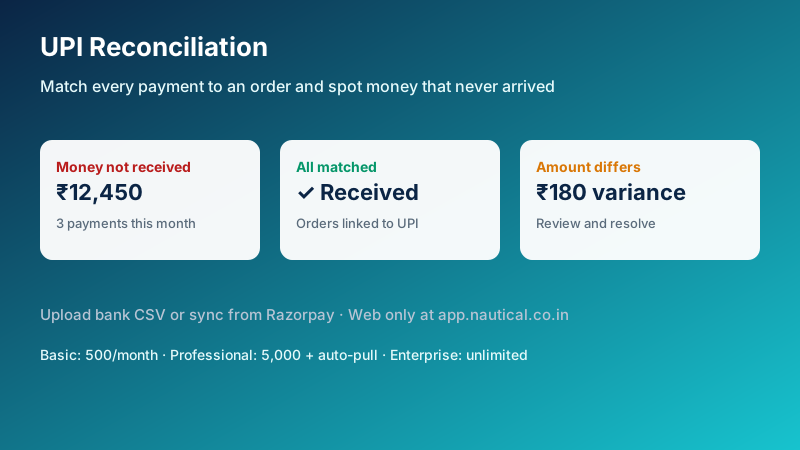
UPI is how most Indian customers pay. At the end of a busy day or week, owners still need to confirm that every payment shown in the bank or payment provider actually matches an order in NHY. Manual spreadsheet checks are slow and easy to get wrong. NHY’s UPI reconciliation does the matching for you on the web so you can focus on the exceptions.
The practical problem
A customer pays by UPI at the table or online. The order is marked paid in NHY. Later the bank statement shows a different amount, a delayed credit, or no credit at all. Finding those cases by hand across hundreds of rows is time-consuming. Owners need a clear view of “money not received”, “received with no matching order”, and “amount differs”, plus a simple way to mark a case as resolved with a reason (cash instead, refund, bank delay, or other).
Realistic example
A café owner opens UPI reconciliation on the web at app.nautical.co.in. They export the month’s UPI statement CSV from their bank and upload it. NHY matches rows to orders by amount and timing. The summary shows ₹12,450 not received across three payments, two amount differences, and the rest matched. The owner opens the “Money not received” tab, confirms one was paid in cash instead, and resolves it with that reason. Another is left open until the bank clarifies. On a Professional plan they can also use “Sync from Razorpay” so settlement data is pulled automatically.
Step-by-step workflow

- Open UPI reconciliation on the web. The full tool lives at app.nautical.co.in (path /owner/upi-reconciliation). On iOS or Android the screen shows an “Open on web” card so you continue in the browser while signed in.
- Bring in the statement. Export a UPI statement CSV from your bank or payment provider and upload it. On Professional and higher plans you can also use “Sync from Razorpay” (and a daily automatic pull at 06:00 IST) when Razorpay keys are connected in payment settings. A sample CSV is available if you need the expected columns.
- Review the summary and tabs. NHY shows totals for the selected month and lists under: Money not received, Received with no order, Amount differs, Received (matched), and Resolved. Switch months with the month picker.
- Resolve exceptions. For resolvable rows, choose a reason (Paid in cash instead, Refunded, Bank delay, or Other) and optional note. Resolved items move to the Resolved tab. You can export a CSV of the current view and see your monthly usage against the plan limit.
Free: Not included.
Basic: 500 transactions per month; CSV upload only.
Professional: 5,000 transactions per month; CSV plus Razorpay auto-pull and “Sync now”.
Enterprise and Enterprise Plus: Unlimited transactions; auto-pull included.
Quotas reset on the calendar month. Auto-pull requires your own Razorpay keys in store payment settings. The feature is web-only; native apps only open the handoff to the browser.
Evidence-based benefits
- Matches statement rows to existing NHY orders so you do not re-enter payments by hand.
- Surfaces missing credits and amount differences in dedicated tabs instead of a single long list.
- Owner-controlled resolution with clear reasons keeps an audit trail without changing order history automatically.
- Monthly transaction caps and a usage meter make plan limits visible before you hit them.
- Professional+ auto-pull reduces repeated CSV exports when you already use Razorpay.
Prerequisites and limitations
You need an active paid plan (Basic or higher). The reconciliation UI runs only in the web app; phone apps redirect you there. CSV import expects a statement format the system can parse; a sample file is provided. Auto-pull and “Sync now” require Professional or higher and correctly configured Razorpay keys. Matching depends on amount and timing alignment with orders already in NHY; it does not invent missing orders. Resolving a row records your reason — it does not automatically reverse or re-create payments in the bank. Usage counts against the monthly transaction quota for your tier.
Frequently asked questions
Why is this only on the web? The tool is designed for statement upload, larger tables, and export. Native apps show a single card that opens the same signed-in web screen.
What if sync says Razorpay keys are missing? Open payment settings from the same area, add the keys, then try Sync now again.
Does resolving change the order status? No. Resolution is a reconciliation note with a reason; it does not rewrite the original order or payment record.
Can I use last month’s statement? Yes. Use the month picker to load a prior month, then upload or review data for that period within your remaining quota.
Ready to check that every UPI credit matches an order? Open the NHY web app, go to UPI reconciliation on a paid plan, and upload your first statement or sync from Razorpay. Go to NHY