← Nautical Blog

NHY · Connectors

Teach your NHY Assistant with skills and connect MCP servers

Add short owner notes as skills and connect your own MCP servers so the WhatsApp assistant can use extra tools. Changes always ask for confirmation.

Published

The NHY WhatsApp Assistant already answers questions about sales, stock, orders and more. Sometimes an owner wants it to follow store-specific notes or reach tools that live outside NHY. Skills and connected MCP servers give that without changing the assistant’s core behaviour.

Both are managed in the NHY app under Store settings → Connectors. Skills are plain text notes the assistant can see. MCP servers expose tools the owner turns on. Anything that changes data still requires an explicit Yes or No on WhatsApp.

The operating problem

A retail owner wants the assistant to remember that Diwali orders must include a gift wrap option, or that certain suppliers only accept payment on Tuesdays. A café owner already uses a separate tool for reservations and would like the assistant to check free slots without opening another app. Without skills or MCP servers the assistant stays limited to the built-in NHY data and commands.

A realistic example

Raj runs a small bakery. He writes a short skill: “When a customer asks for a custom cake, note the flavour, size and pickup date and confirm we call them back within two hours.” He previews it, activates it, and the assistant now includes that guidance when relevant. Later he connects an MCP server that lists his delivery slots. He turns on only the read-only “list slots” tool. On WhatsApp he can ask “delivery slots tomorrow” and receive the list; any booking still needs his confirmation.
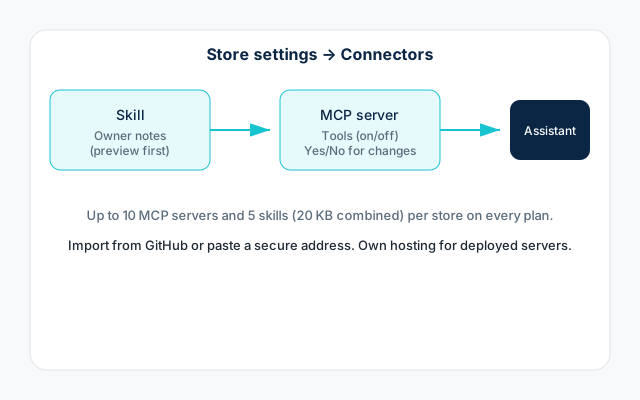
Diagram of adding a skill and an MCP server in Connectors so the NHY assistant can use owner notes and selected tools
Skills add owner notes; MCP servers add tools the owner enables. Changing tools always ask for confirmation.

How to add skills and connect servers

  1. In the NHY app open Store settings and choose Connectors. Only owners see the full management screens.
  2. In the “Your skills & MCP servers” section, tap to add a skill. Paste or type the note, preview it (the app highlights any problems), then activate exactly the text you previewed. The skill becomes available to the assistant as an owner note. It cannot turn other tools on by itself.
  3. To add an MCP server, tap Add MCP server. Paste a public HTTPS address. If the server requires a token, enter it; the token is stored encrypted and only ever shown as dots. Alternatively, use Sign in when the server supports it. After connection, choose which tools to enable. Tools marked read-only run when asked; others show a Yes/No confirmation on WhatsApp before they act.
  4. You can also import from a GitHub repository. Skills import without charge. Servers that need hosting require a connected deployment platform (Vercel, Railway or Render). Analysis of the repository uses your own AI account if connected, otherwise 0.01 credits (refunded if it fails). Deploy happens on your own platform account; the server appears as Deploying until it connects or times out after 30 minutes.
  5. On WhatsApp type /connectors to see the list of connected voice accounts, MCP servers and skills. Ask the assistant in the usual way; it uses the notes and enabled tools when relevant.

You can remove a skill or server at any time from the same screen. Refreshing an MCP server reloads its available tools.

Which plans include it

Skills and connected MCP servers are available on every plan, including Free. There is no separate subscription gate. Every store has the same limits: up to 10 MCP servers and up to 5 skills whose combined size is 20 KB. These limits are per store and do not reset monthly; they are capacity limits, not usage quotas.

PlanConnected MCP serversAssistant skills
FreeUp to 10 servers/store5 skills/store; 20 KB combined
BasicUp to 10 servers/store5 skills/store; 20 KB combined
ProfessionalUp to 10 servers/store5 skills/store; 20 KB combined
EnterpriseUp to 10 servers/store5 skills/store; 20 KB combined
Enterprise PlusUp to 10 servers/store5 skills/store; 20 KB combined

Importing a skill from GitHub is free. Hosting an imported MCP server requires your own connected deployment platform account; Nautical does not provide the hosting. Repository analysis for import costs 0.01 credits unless you have connected your own AI account. Voice-note transcription connectors (separate from MCP) also use your own speech provider account on every plan.

These rows already appear in the public pricing page and the in-app plan comparison. No change to the comparison data was required for this article.

Limits and things to know

Skills and MCP servers extend the assistant with notes and tools you control. They do not replace the built-in NHY features or the need to confirm important changes.

Questions owners ask

Do skills cost credits?

No. Adding and using a skill does not use Nautical credits. The skill is simply text the assistant can read.

What if an MCP server is down?

The assistant will not be able to call its tools until the server is reachable again. You can refresh the connection from Connectors. Other assistant features continue to work.

Can I use this on the Free plan?

Yes. The same server and skill limits apply on Free, Basic, Professional, Enterprise and Enterprise Plus.

Open NHY and go to Connectors